

Workflows
A workflow is a set of rules that controls how content moves from draft to publication in a space.
Storyblok includes a default workflow with three workflow stages: drafting, reviewing, and ready to publish. This workflow applies to all content types and folders.
Customize this workflow under Settings → Workflows. Click on the Default workflow to edit it.
Edit or remove predefined workflow stages, add new workflow stages, and reorder them by dragging. Each stage requires a name, a color, user rights (including the rights to advance or publish a story), and the available next stages.
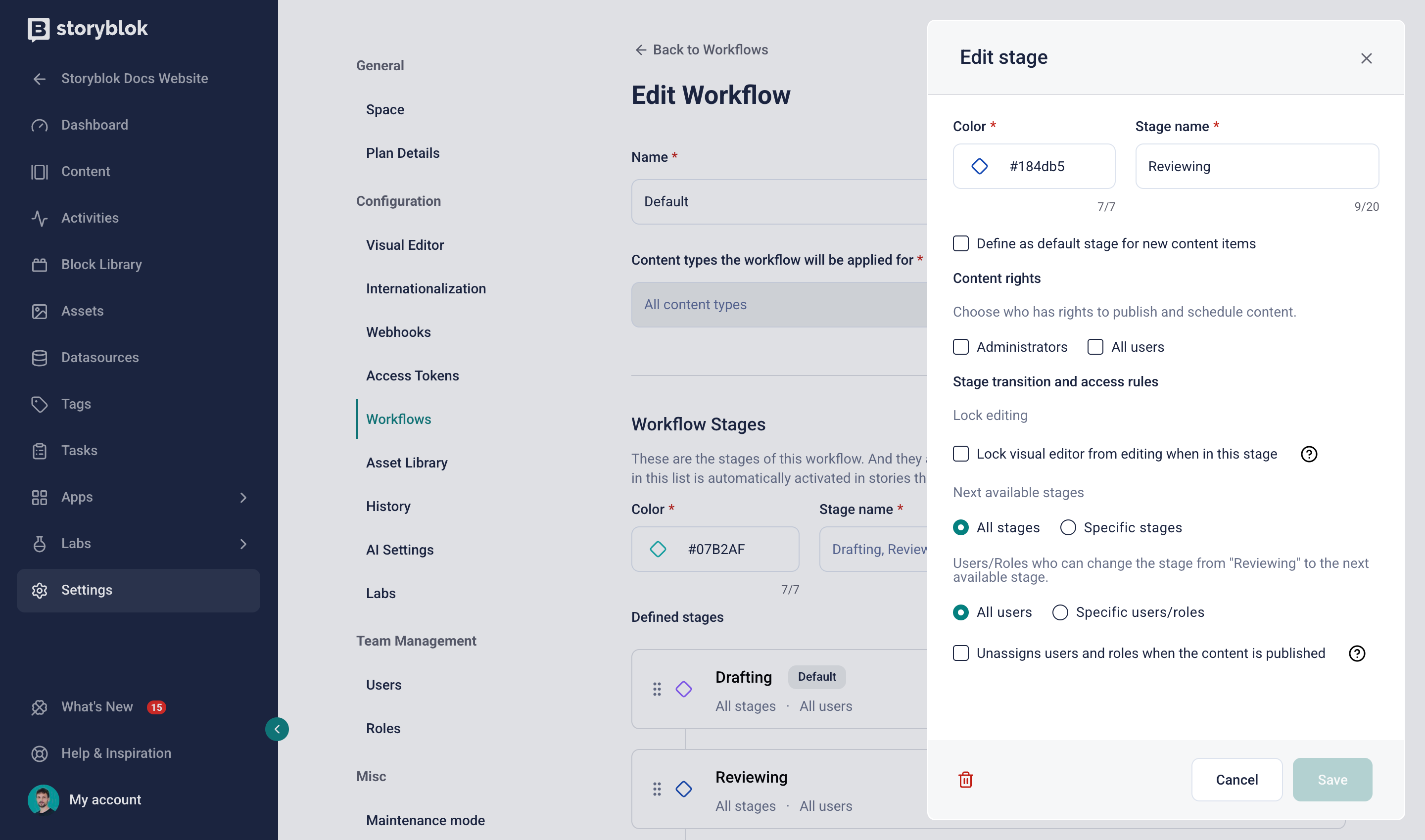
Configure a workflow
Use workflows in the Visual Editor
Section titled “Use workflows in the Visual Editor”In a story, open the Workflow section. On the Workflow tab within it, apply an eligible workflow stage to the story.
Assign a user or user role to the current or new workflow stage. Optionally, set a due date for their review. Affected users receive an email notification. The UI informs about the time left to complete, and about overdue reviews.
Optionally, when assigning a new workflow stage, leave a comment.
The Comments tab provides an overview of all comments made in the context of workflow stage changes.
The Workflow changes tab provides a chronological overview of workflow stages applied to the story.
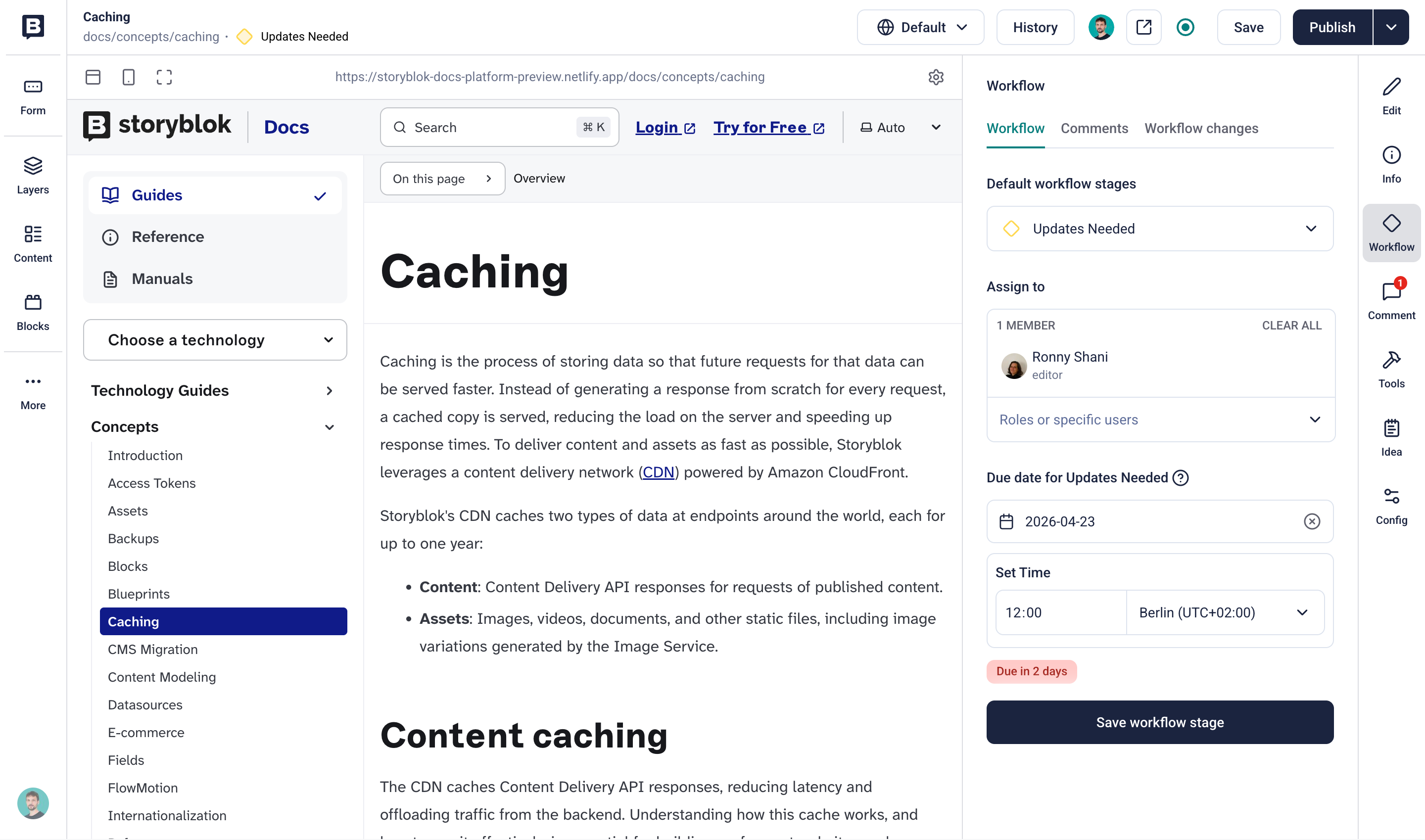
Apply workflow stages to a story
Use workflows in folder and story settings
Section titled “Use workflows in folder and story settings”In the Content section of a space, select a single story or folder and open its Settings. Under Workflow Settings, choose an eligible workflow stage. Optionally, assign it to a user or role and choose a due date.
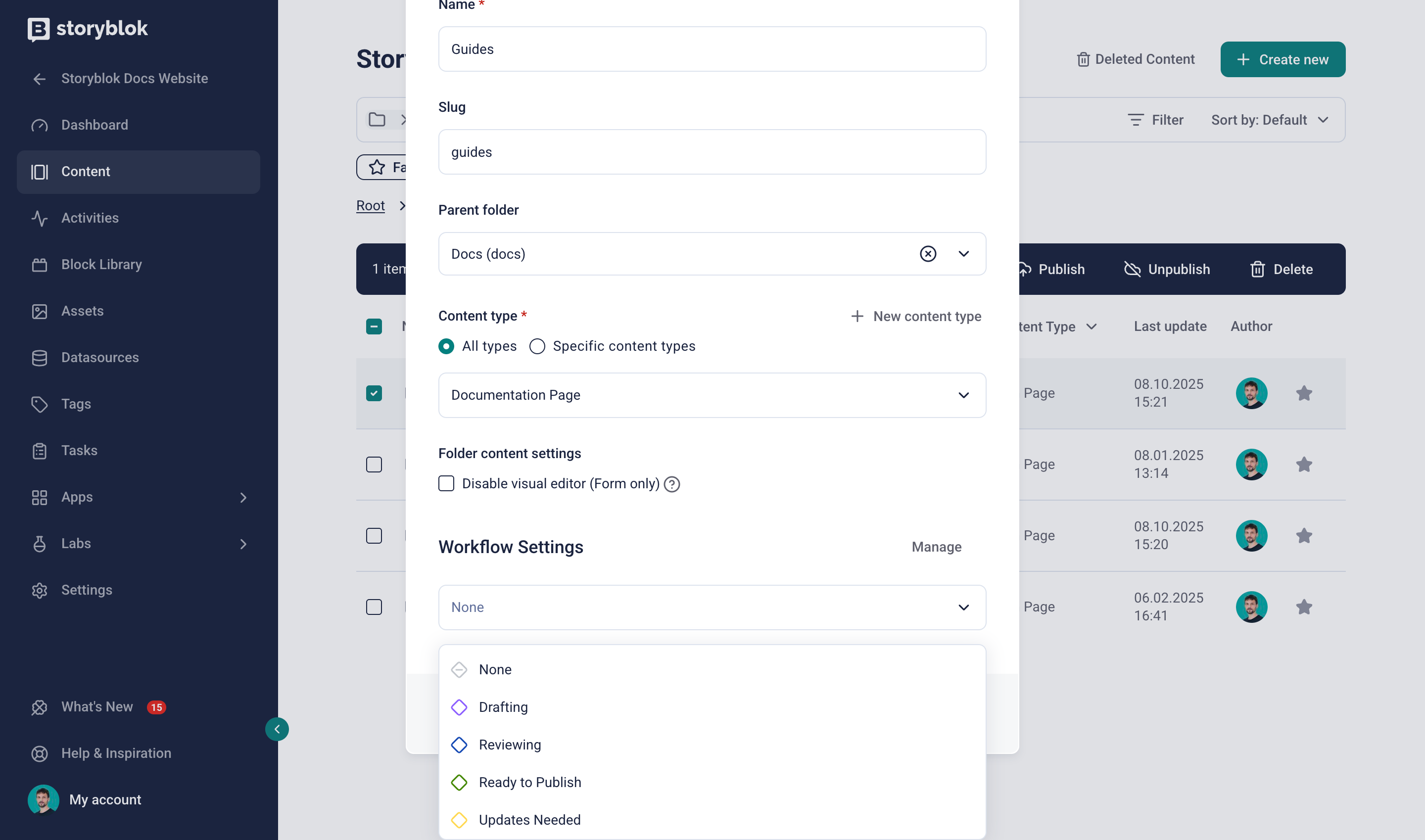
Apply workflow stages to a folder
Create custom workflows
Section titled “Create custom workflows”Under Settings → Workflows, create additional workflows by clicking Add Workflow. Custom workflows allow for granular control over the editorial process by custom-tailoring them for specific content types. For example, create a custom workflow for product landing pages or press releases.
Was this page helpful?
This site uses reCAPTCHA and Google's Privacy Policy (opens in a new window) . Terms of Service (opens in a new window) apply.
Get in touch with the Storyblok community