

Multi-Space Orchestration
Multi-space orchestration lets you synchronize content across multiple spaces in your organization.
The main feature, content distribution, lets you duplicate a story across connected spaces and keep those duplicates up-to-date with overwrite and merge actions. You can link stories manually, translate content with AI while cloning, and monitor the distribution status of all connected spaces in one view.
First, open Organization → Settings → Content Distribution and select connected spaces. Distribution is only supported in spaces within the same region.
Next, add a source space. Depending on your setup, this space can be the single source of truth or serve as both a source and a target:
- A single source of truth: the source space can only push stories to one or more target spaces, but never receives content from them.
- A source and a target: the source space has a dual function—it can push stories in one configuration while receiving stories from other source spaces in a second configuration.
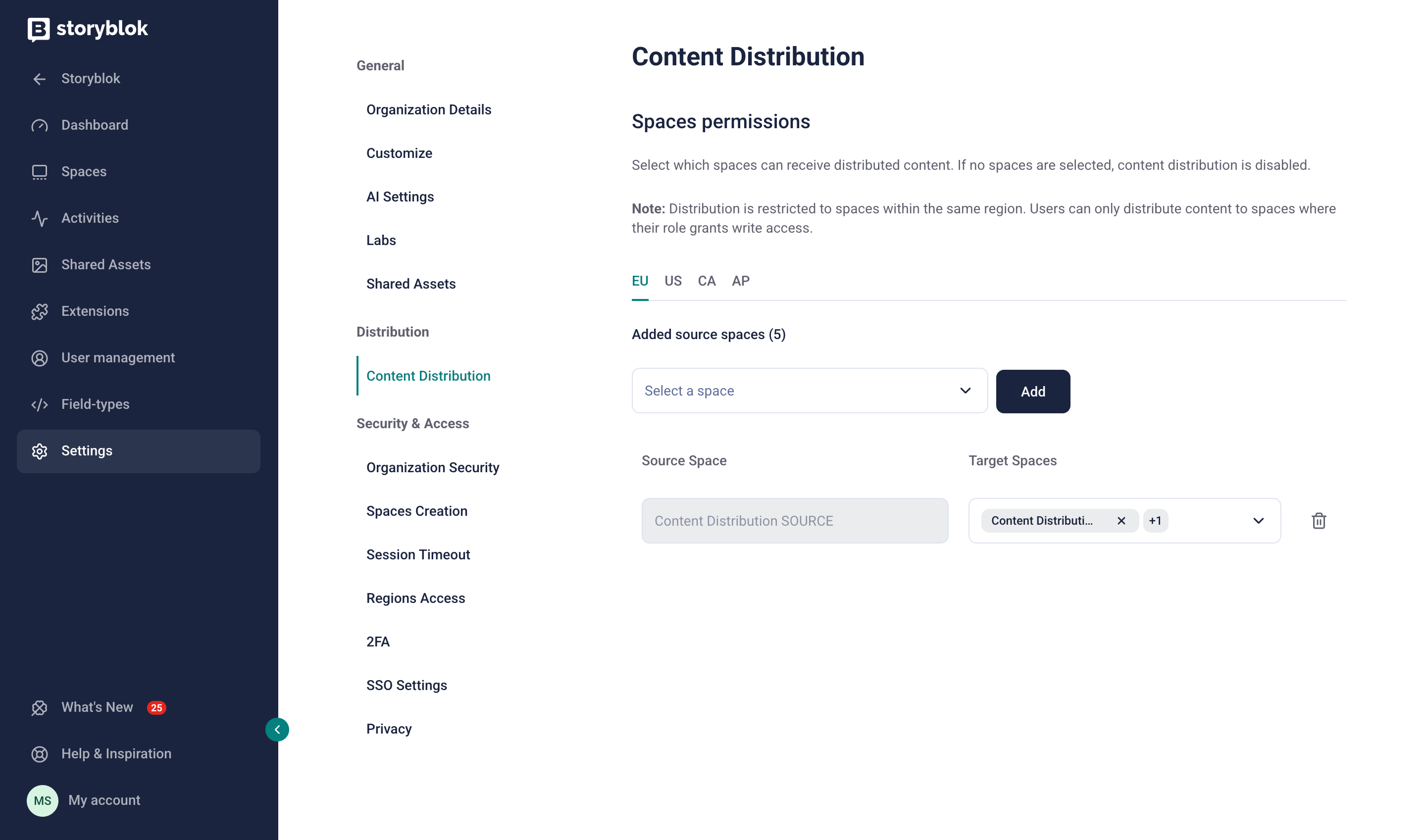
A source space configured to distribute content to two target spaces
Connected spaces must use the same block structures and definitions. To share these components across multiple spaces, install the Shared Components app, or use the @storyblok/schema package.
Manage distributed stories
Section titled “Manage distributed stories”In the source space, open a story in the Visual Editor, and select the Distribute section in the left toolbar. The list includes all versions of the story that exist in the target spaces, and their publication status.
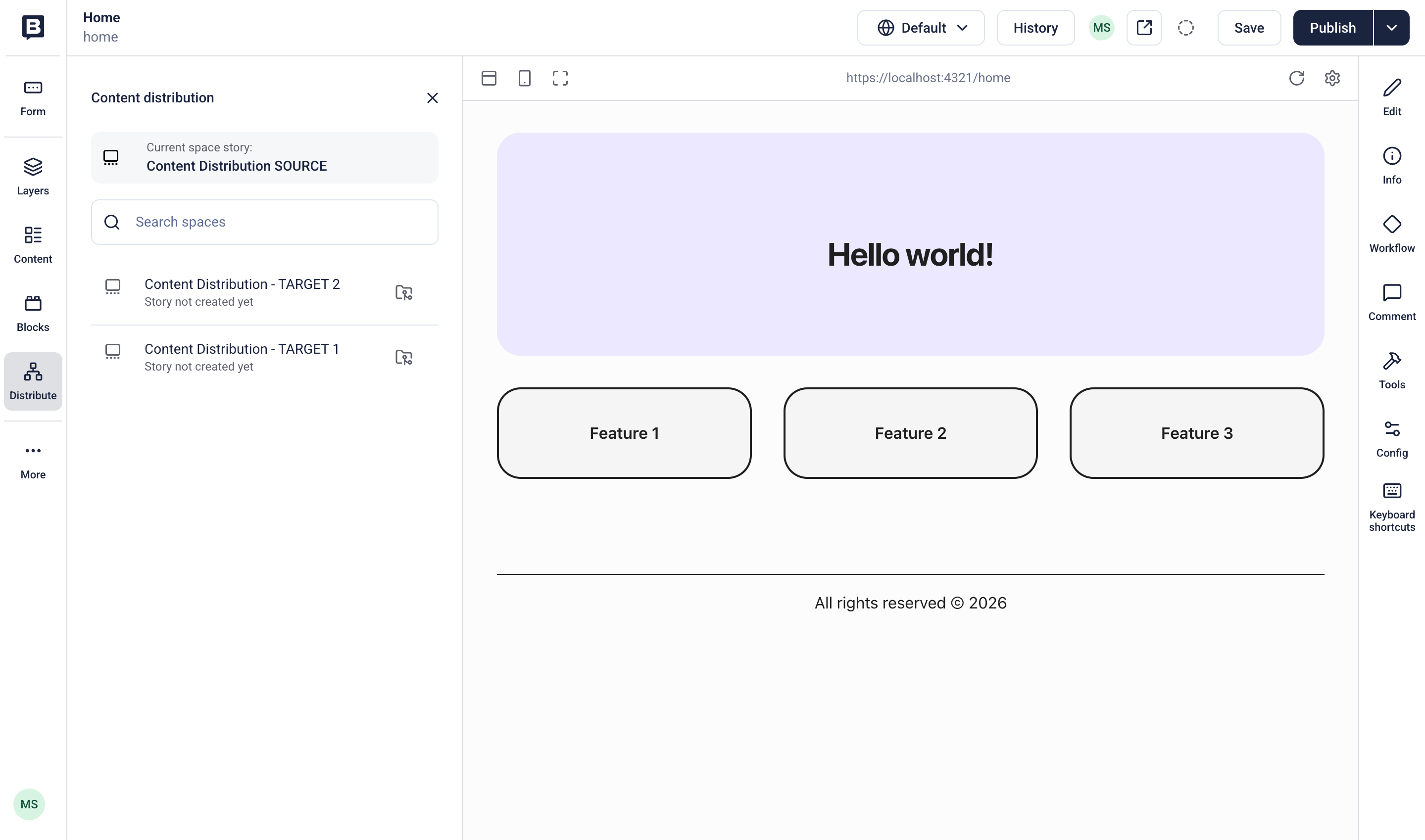
The Distribute section in the Visual Editor
To duplicate, overwrite, or merge stories, your role must have permission to create and edit content in both the source and target spaces.
To duplicate a story in a target space, select Clone. Storyblok creates the new story in the target space, also creating the same relative folder path if one doesn’t already exist. The source and cloned stories are automatically associated with one another.
To edit a duplicate story, select it from the list and open it in a new browser tab. Update the content in the target space, and save.
To clone a story and translate the content with AI in a single step, select Clone & Translate next to a target space, then select a target language. By default, AI translates all content in the story. To translate only parts of it, enable Custom Field Translation and select individual fields from the story's block structure.
To replace the target story’s structure with that of the source story, open the source story and select Merge. The merge action updates only blocks fields, preserving the target story’s existing content.
Overwrite
Section titled “Overwrite”To replace the target story’s structure and entire content with that of the source story, select Overwrite.
Associate manually
Section titled “Associate manually”Storyblok tracks which stories belong together across spaces through associations. The Clone action creates an association automatically, but you can manually associate stories that already exist in both spaces.
In the source space, open the story, select Distribute, then Manage story associations. Select Add first association, or Add new association if the story is already associated with a story in another space. Choose a connected space and the equivalent story in that space, then select Add. Repeat for every space you want to associate.
The list shows the associated space and its space ID, the story and its slug, and the time of the last update. To remove an association, select the unlink icon next to it.
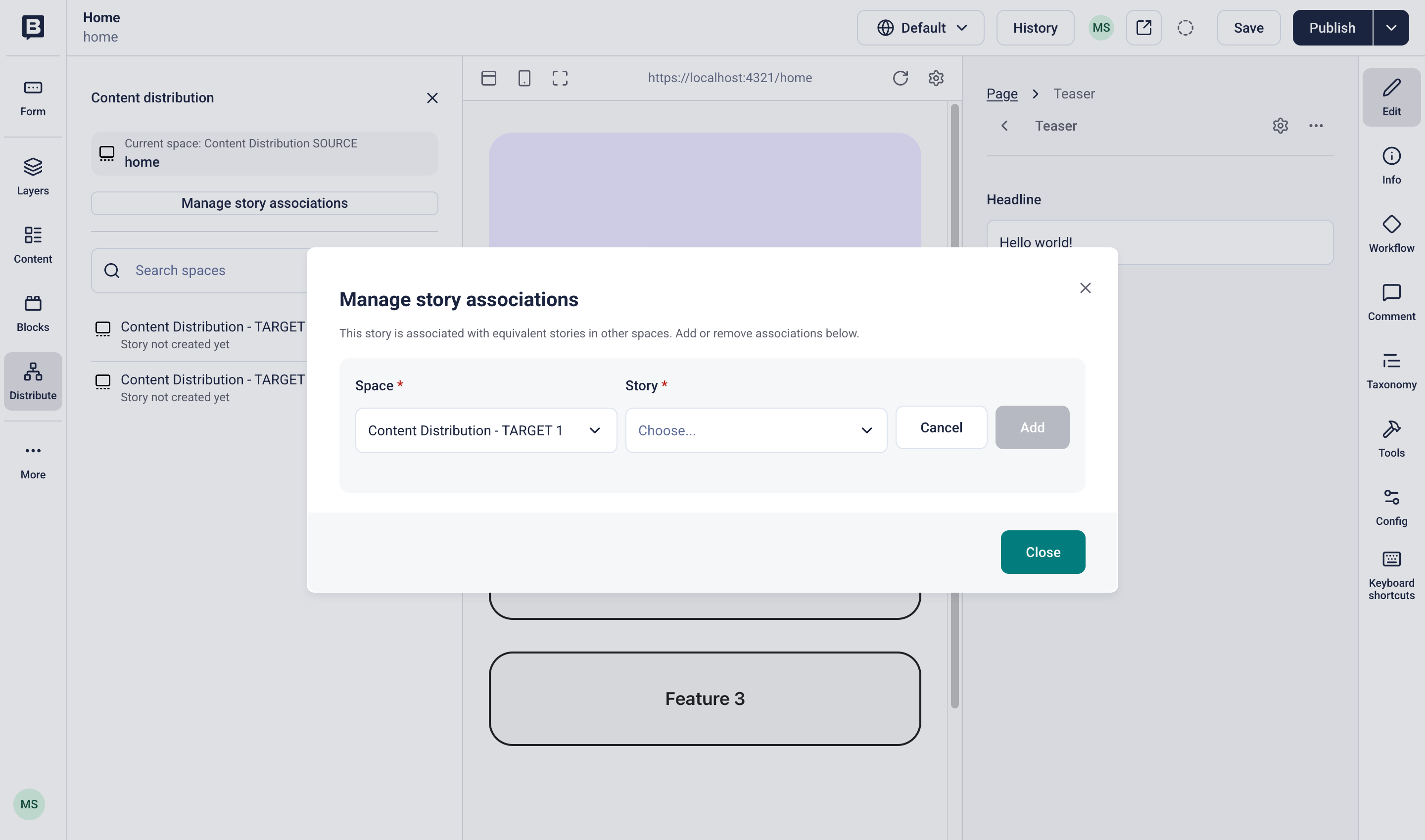
Associating a story with its equivalent in a target space
Resolve broken references
Section titled “Resolve broken references”If a story you distribute references other stories that don't exist in the target space yet, Storyblok displays the Story cloned with broken references list. Search for and select the matching story in the target space, then Save references. To leave the references unresolved, select Skip.
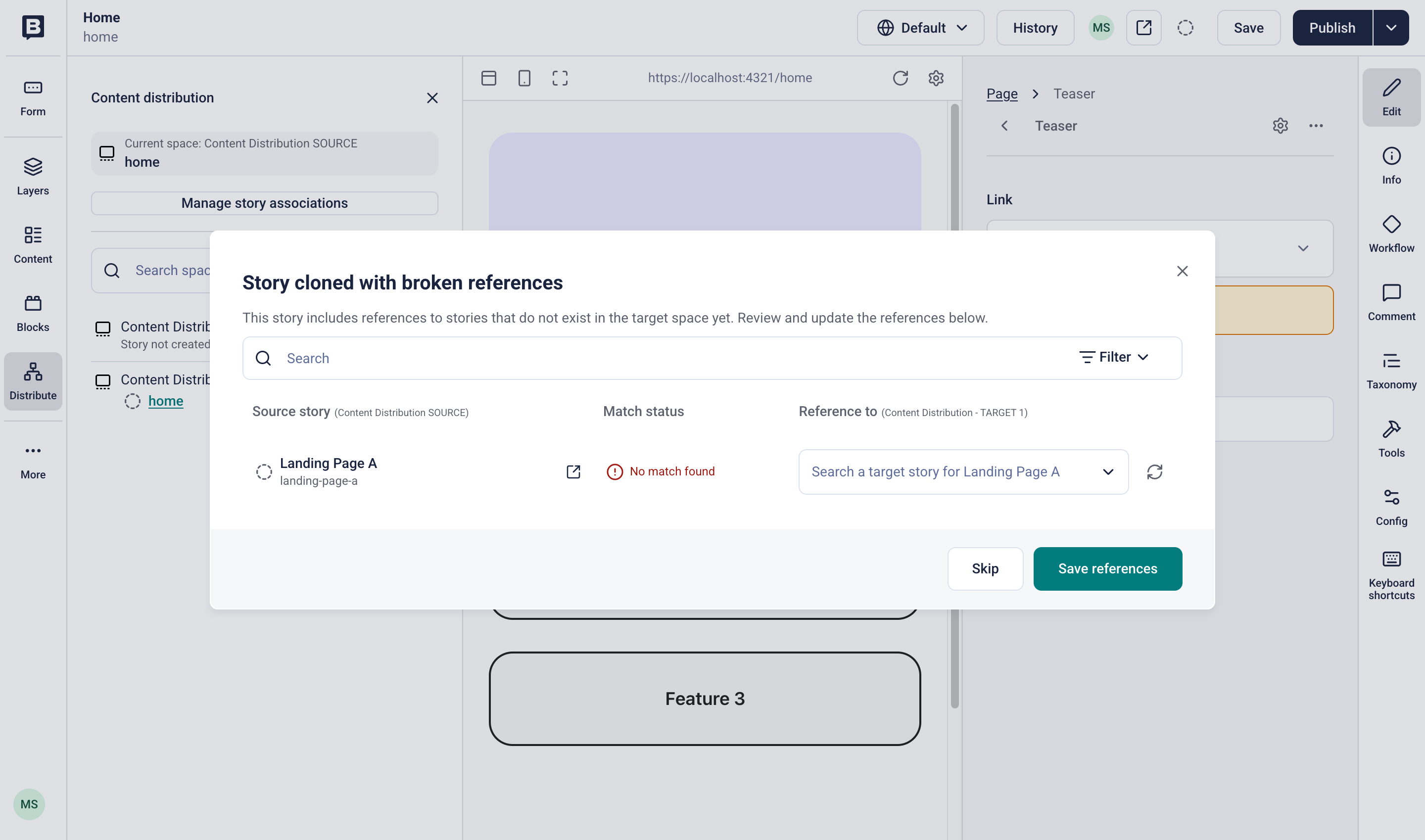
A cloned story with a reference that has no matching story in the target space
Distribution dashboard
Section titled “Distribution dashboard”You can review the distribution status of your stories across all organization spaces.
Open Organization → Distribution, and select a Region, a Reference Space, one or more Target Spaces, and a date range.
The dashboard lists the associated stories in each space, along with each story's slug and publication status. Use the search field to find a specific story.
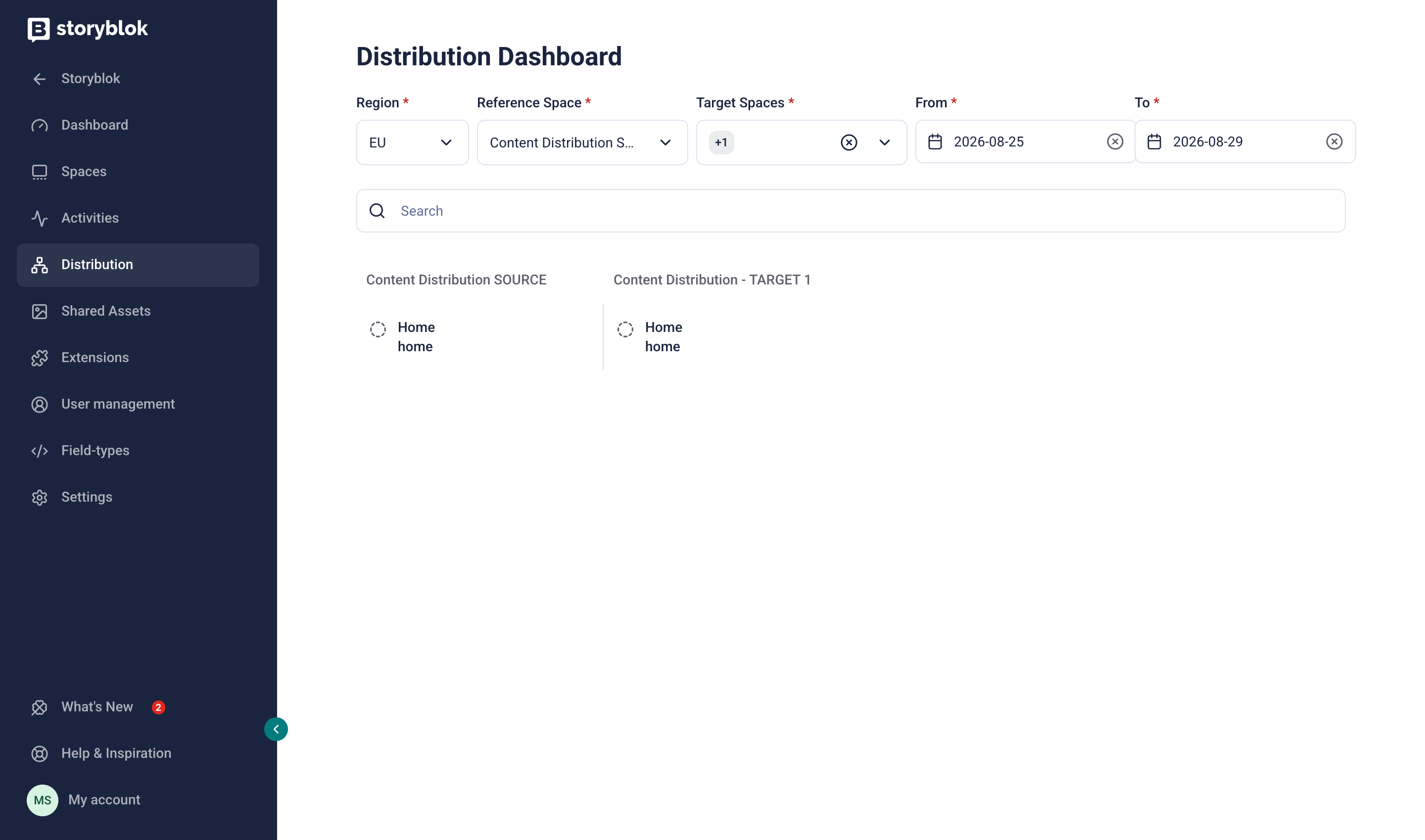
The Distribution dashboard, filtered to one source and one target space
Troubleshoot
Section titled “Troubleshoot”- Existing stories: the Clone action fails if a story with the same slug already exists in the target space. In the target space, delete or move the existing story before attempting to clone.
- Shared assets: the Clone action doesn’t duplicate assets; it preserves references to the original asset in the source space. If you use shared asset libraries, ensure that the target space has access to the same shared asset library as the source space.
- Internal links: the Overwrite action only updates internal links and references if you cloned or associated the relevant stories beforehand. If a story references stories missing from the target space, use the Story cloned with broken references dialog to link each reference to an equivalent story.
Further resources
Section titled “Further resources”Was this page helpful?
This site uses reCAPTCHA and Google's Privacy Policy (opens in a new window).Terms of Service (opens in a new window) apply.
Get in touch with the Storyblok community